Dashlets
Dashlets are the elements for displaying information and providing actions within a Portal Page. Note that one dashlet is connected to one source system. For this reason, a Portal Page can show data from different source systems. In addition to the dashlets delivered in the standard package, the admin can define dashlets of the same type with individual content.
The following dashlets are available: Search, Info tiles, News, Current IT disruptions and Chatbot.
The Search box is a central dashlet located in the middle of the Welcome Page. It gives you a quick and convenient way of finding solution documents, news entries, current IT disruptions, depending on the content and search configuration provided by your admin. All search results are categorized according to the type of content.
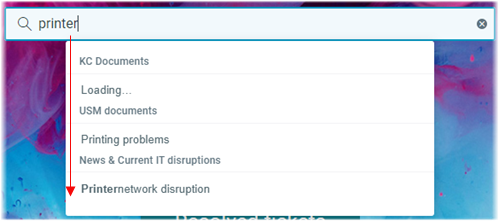
Type your search term and press the key to submit the search.
For details, see Using the search.
The purpose of the Info tiles is to give you a quick overview of tickets and requests and also to provide a quick access to the common actions.
The following Info tiles are available as part of the standard package:
Open requests
Open tasks
Solutions to confirm
Open tickets
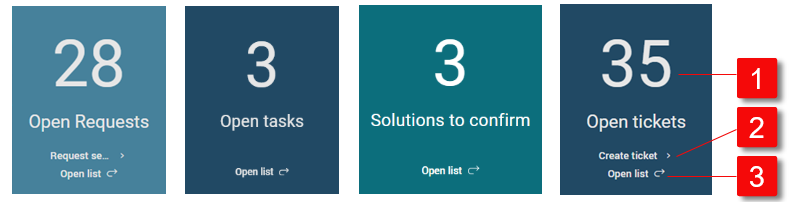
| Total number | The total number expresses the overall number of open tickets, resolved tickets, open request or open tasks. It is always displayed in big white numbers to grab attention so that you can immediately check how many tickets already have a proposed solution for your issue or check the status of the open shop requests. |
| Action button | The action button allows you to start an action immediately from the Info tile without the need to open a menu. Typically you can create a ticket or create a service request using the action buttons. |
| Link to the detailed list | The link allows you to quickly access the full list of tasks, tickets or requests without the need to open a menu. |


Note
The Manager user usually uses different set of Info tiles compared to the End-user.
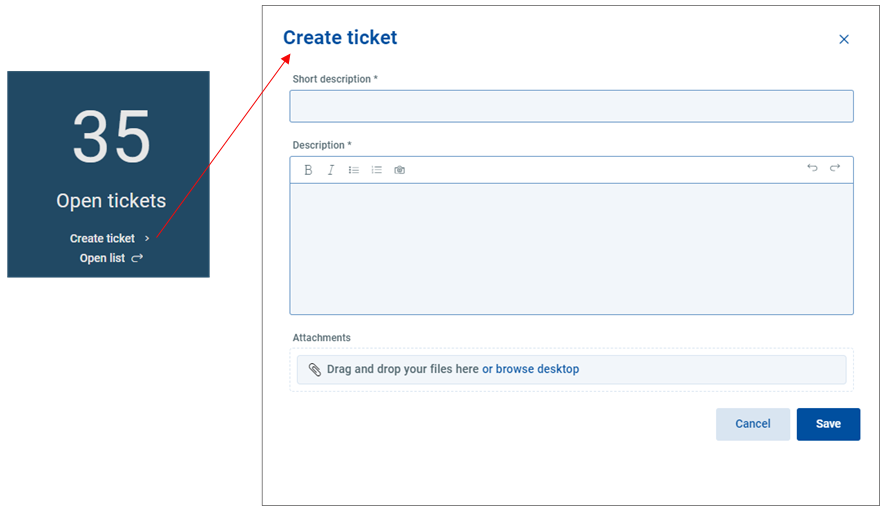
Click the selected to do something.
For example, start creating a ticket.
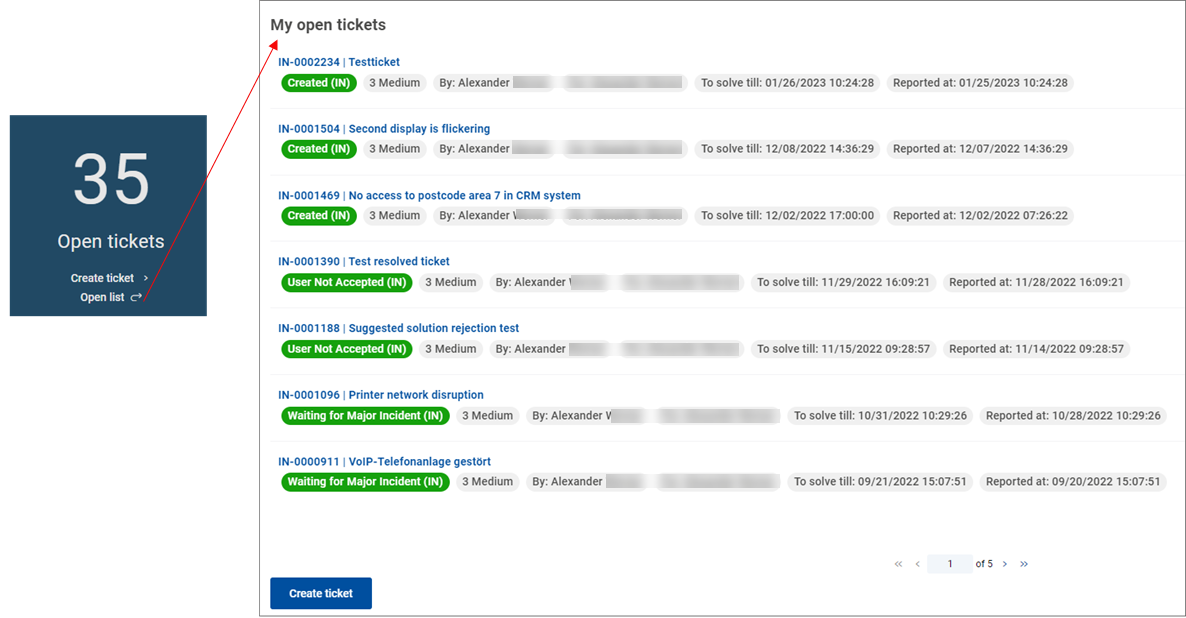
Click in a specific tile to open the full list of required objects.
For example, open a list of the opened tickets.
Self-Service Portal news is a centralized news hub which contains the news created by your IT Service organization and is usually used to inform you about the planned maintenance, known issues, announcements, etc.
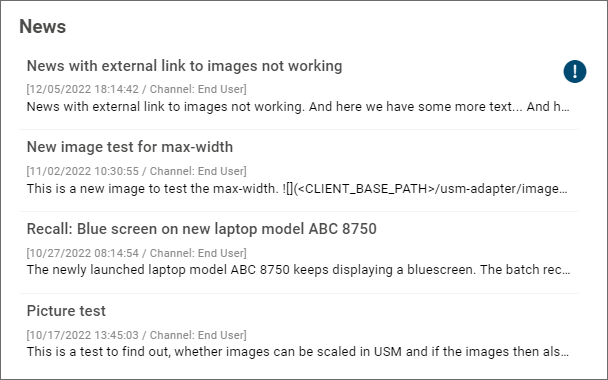
To discover more about the stories that matter to you:
Click the selected news in the list.
The news drawer slides in from the right.
Here you can read a full description of the selected topic.
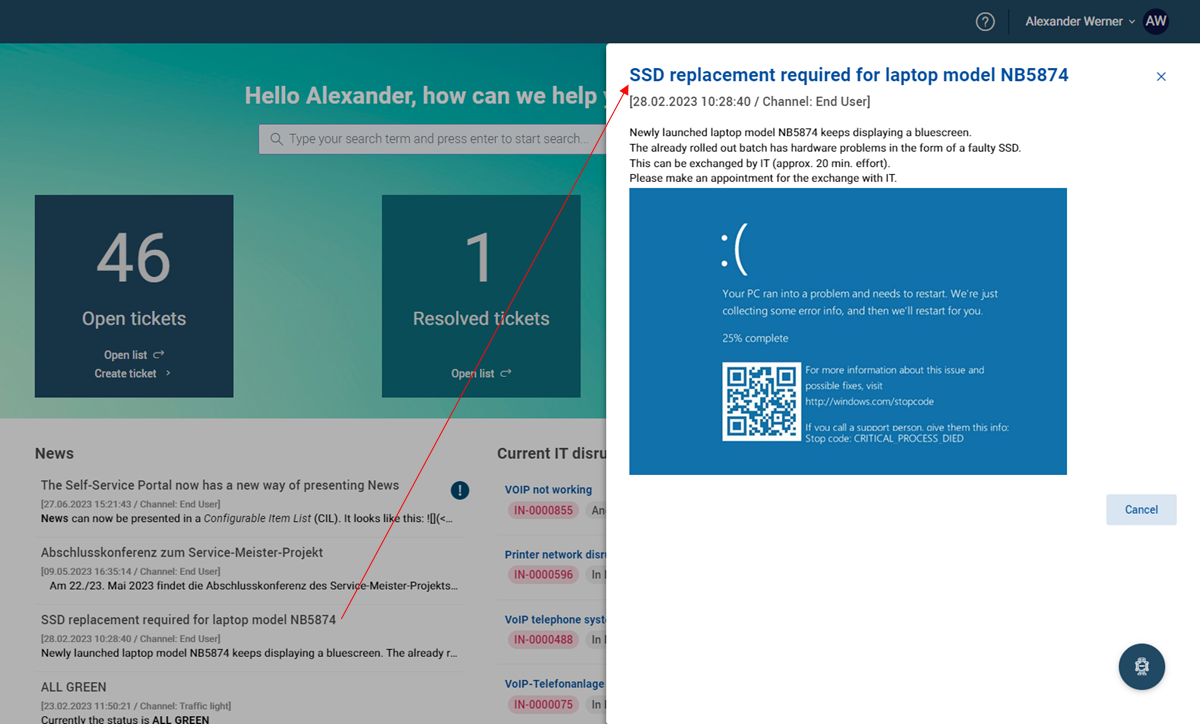
Click Cancel to close the drawer.
Note
A number of news is currently limited to 4 items on the Welcome Page.
The list of Current IT disruptions gives you a quick overview of the major IT issues affecting multiple users and their current status.
The Current IT disruptions can be posted on multiple pages. Use the arrow buttons below to flip through the individual pages.
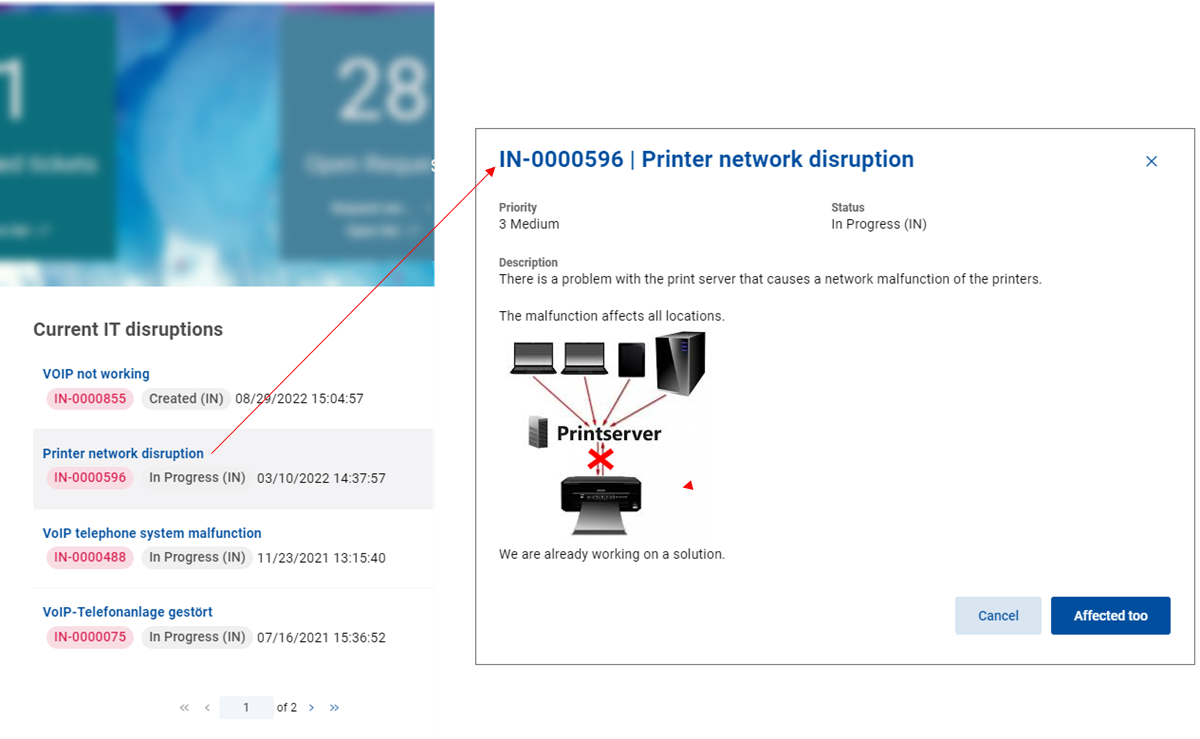
To read the current IT disruptions in full:
Click the selected IT disruption.
The drawer slides in from the right.
Here you can read a full description of the selected disruption.
Click Cancel to close the drawer.
The Chatbot is an integral application which simulates human-like conversations with users via text messages. It is an optional solution for urgent issues when you need guidance in narrowing down the reason for your issue and finding a solution.
The Portal Chatbot is either able to conduct a guided conversation or to run self-help actions directly on the basis of the entered keyword.
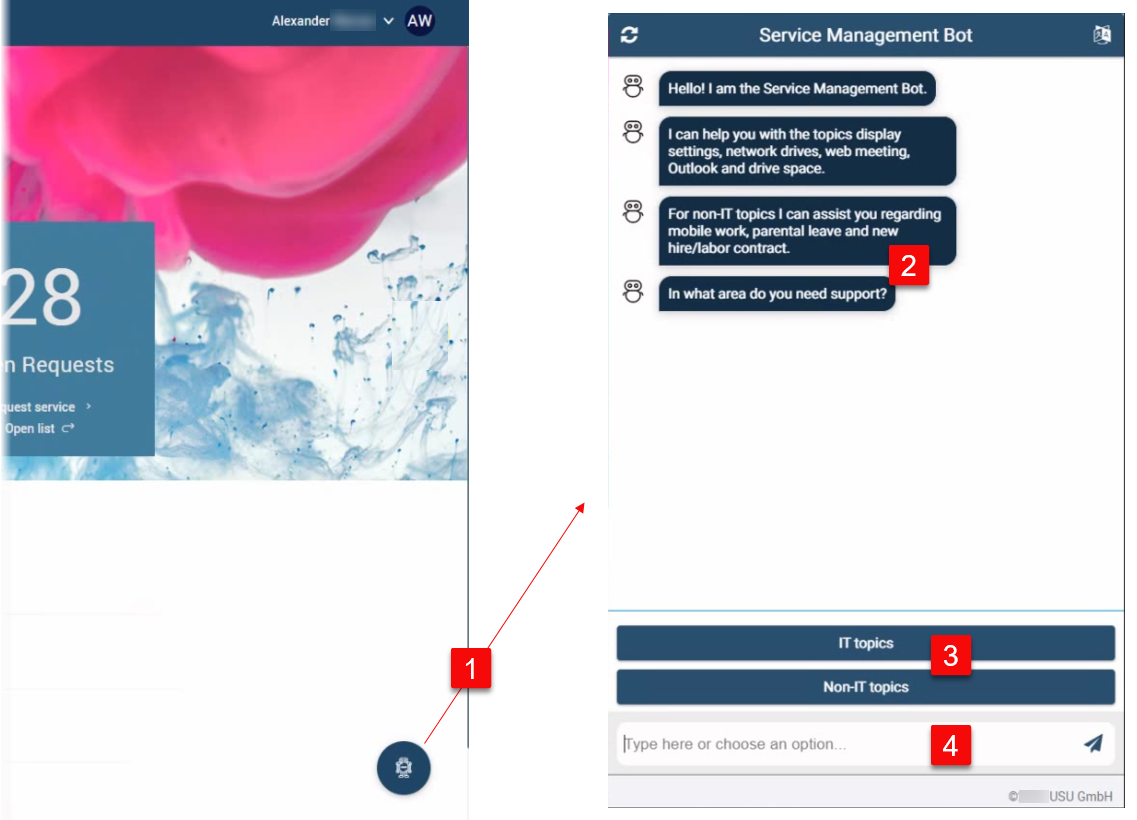
| Chatbot icon | If it has been customized, the Chatbot icon is located in the the bottom right corner of the screen. Click the icon to launch the Chatbot window. |
| Messages | The chatbot messages are listed vertically in the message window. Note that the chatbot dialogs are tailored for a specific customer and his environment. |
| Categories | You can either start the Chatbot conversation here by clicking through the predefined dialog categories (for example, IT topics vs. Non-IT topics). Alternatively, you can use the Message input field to enter a keyword. |
| Message input field | Start the Chatbot dialog here by entering a question or a search term. The Chabot AI analyzes the keywords and starts the correct dialog which leads to the adequate solution. |

For details, see Chatbot dialogs.