Searching
When you come to USU Self-Service Portal, basically you want to solve an issue. The Search or Chatbot are two most commonly used entry points in this case.
Specifically you can use the search in:
Searching in the Welcome Page
The Search box dashlet in the Welcome Page is the central building block of the USU Self-Service Portal. With this feature, searching in the Portal is a very straightforward process. All you need to do is just type what you are interested in finding into the search box and press Enter. The actual search results sorted by categories will load in a small search window below the search box.
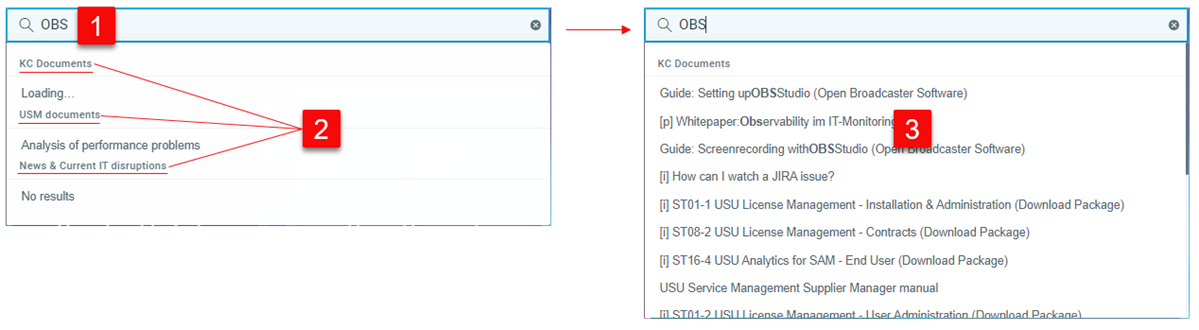
| Search term | Enter your term into the search box and press Enter. Use the cross icon on the right to delete the search term. |
| Search categories | For a better overview, the search results are sorted by the following categories:
Note that the category names can be customized. |
| Search result window | The window contains all the search results sorted by the categories.
|


Searching in the customizable item list
It is also possible to perform the search in most of the customizable item lists across the Portal.
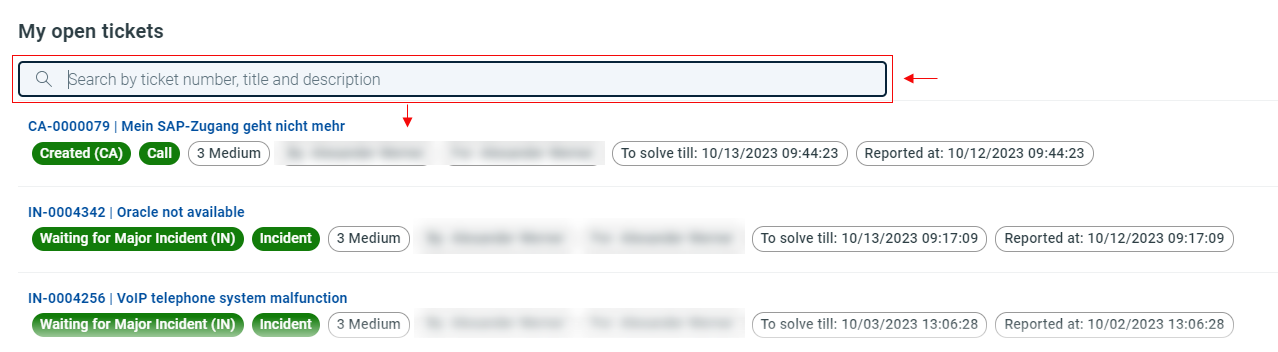
Note
This search type works independently of the Welcome Page search.
The following customizable item lists with the search functionality are available:
My open tickets
My resolved tickets
My tickets all
My requests
For details, see Customizable item list.