Displaying and extending the existing tickets
A ticket contains information that is relevant to the Incident, Problem or Change request. When you open a ticket details, you can see the time it was reported, the impact and priority, a type of the ticket, links to the persons involved in solving the ticket and one or more ticket descriptions. In addition, you can add attachments and comments.
Note
Ticket descriptions are also referred to as comments in the Self-Service Portal.
In the Self-Service Portal, you can display the existing tickets, open a ticket in a detail view, add an attachment and create a comment. You can also perform the search in most of the customizable item lists.
To display the existing tickets:
Go to the Open tickets Info tile.
Click .
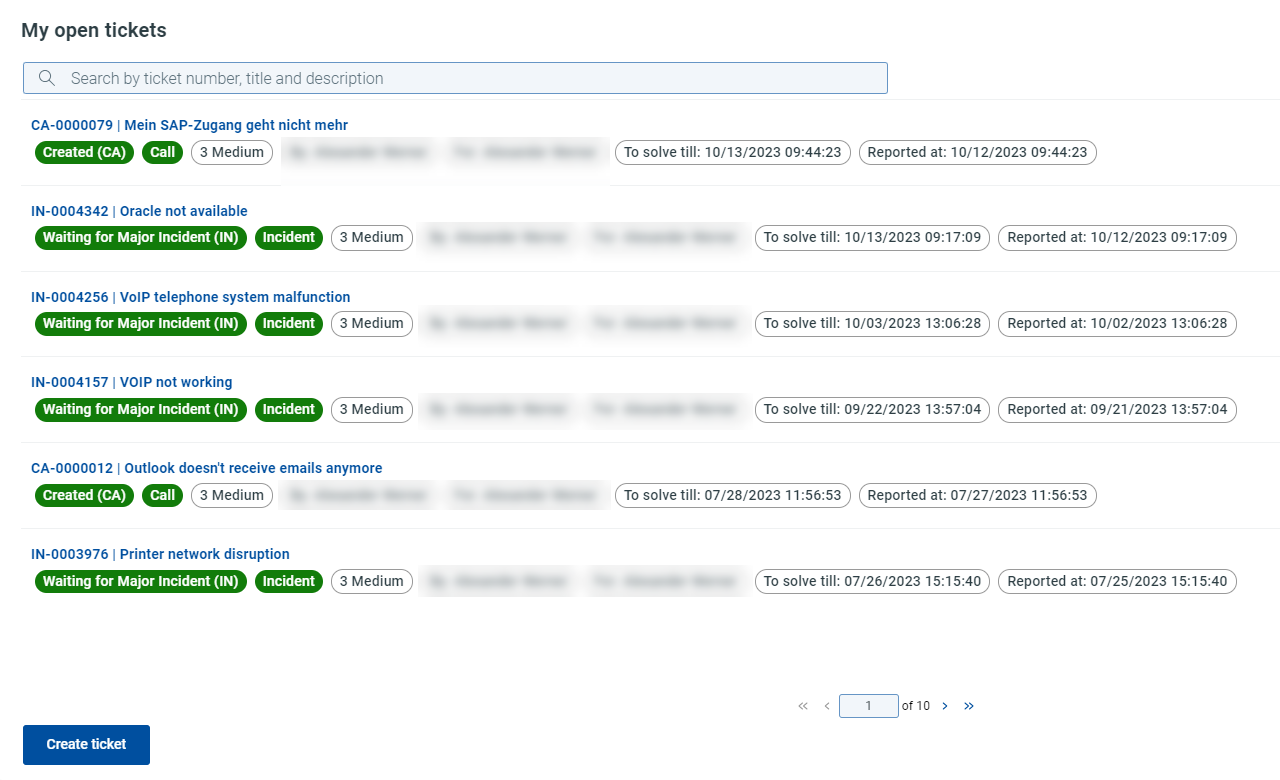
My open tickets dialog opens.
Here you can check all the existing tickets and open a selected ticket in a detail view.
To open a ticket in a detail view:
Display the existing tickets by opening the My open tickets dialog.
Select and click the ticket you need.
A drawer with all the ticket details opens on the right.
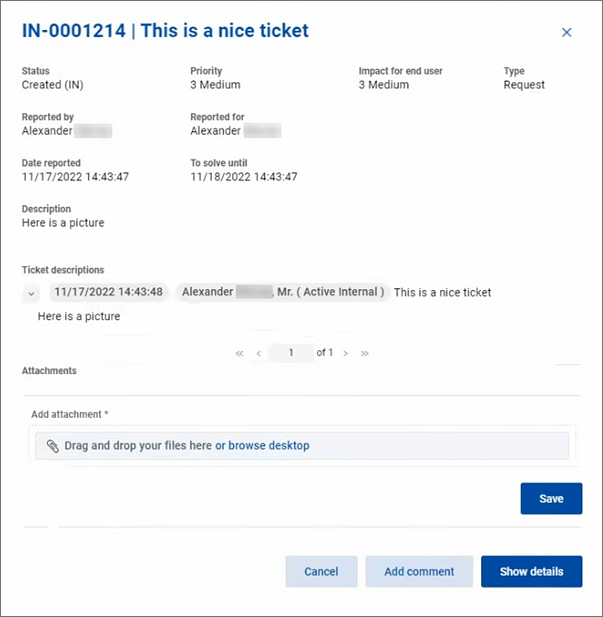
Check the ticket details such as Status, Priority, Reported by, Date reported as well as the ticket descriptions provided by you or the Help Desk.
You can also Add a comment and Add an attachment from here.
To add an attachment in the ticket details dialog box:
Open a ticket in a detail view.
Go to the field.
Click to for an attachment or it onto the field.
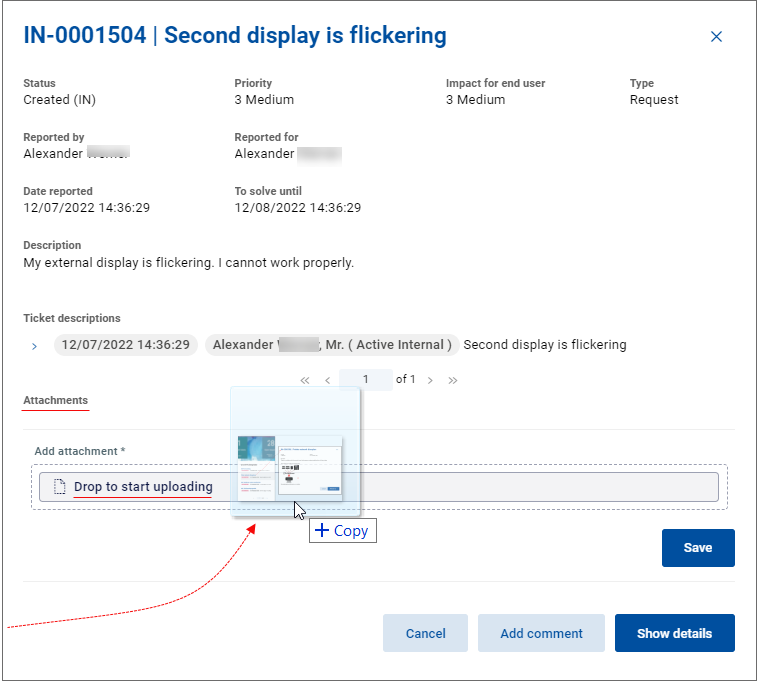
Click Save.
The existing ticket has been updated with the attachment.
Note that some limitations can be applied to the uploaded files. An administrator can set the max. allowed size and the file type limitations.
Max allowed file size
It is the maximum file size (in MB) that the application accepts. If you try to upload a file larger than the limit allows, you get an error message.
File type limitation
In this case, only the files with the allowed file extensions are accepted during the upload. If you try to upload a file of an unallowed type, you get an error message.
To create a new comment for a ticket:
Open a ticket in a detail view.
Click Add comment.
The Add comment dialog opens.
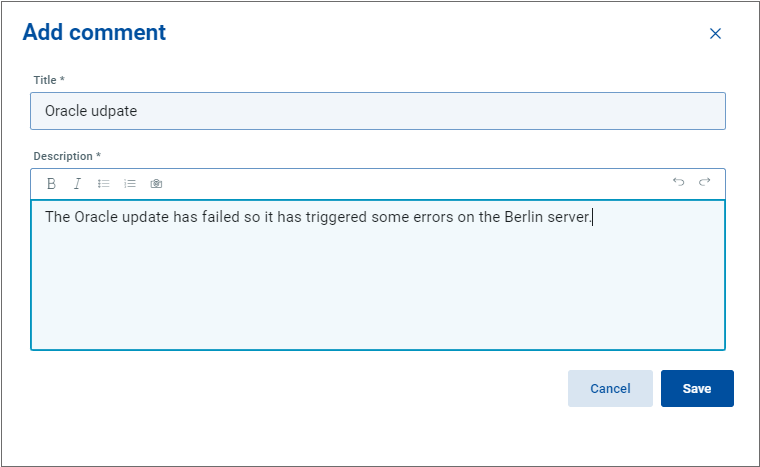
Write your comment.
Note that you can also copy and paste a picture directly in the description field.
Click Save.
The existing ticket has been updated with a new ticket description.
It is also possible to perform the search in most of the customizable item lists across the Portal.
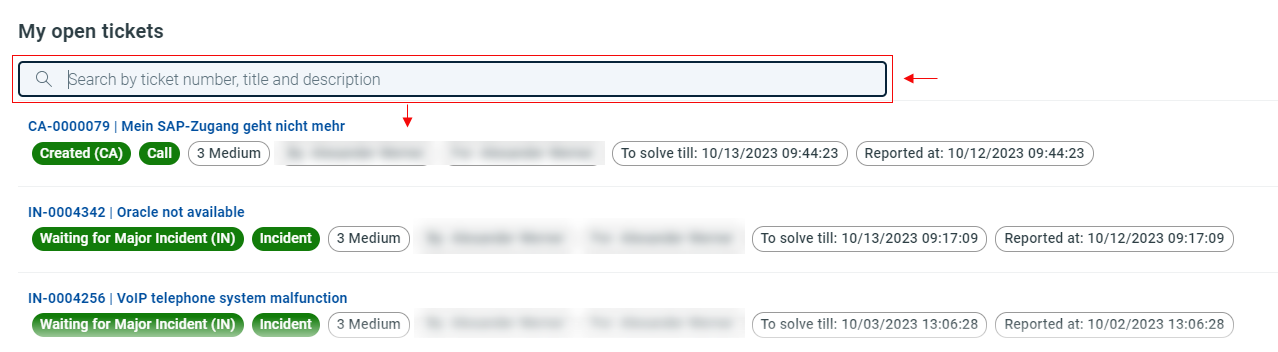
The following item lists with the search functionality are available:
My open tickets
My resolved tickets
My tickets all
My requests
For details, see Customizable item list.