Mark category as recommended
A category can be specified as recommended. Making a category recommended results in the category being displayed as a tile in the Recommended categories home page section.
If no recommended category has been specified, the recommended categories section is not displayed in the home page.
No restriction applies to the maximum number of recommended categories, however be aware of its impact on the look and feel of the Shop home page. (See End user perspective below for more information on the visual aspects.)
Use recommended categories to provide fast access to the most important categories, to draw users' attention to specific categories and to make the home page more useful and visually pleasing.
To make a category recommended:
Locate the category in the category tree and select it. The category gets displayed in the detail tab on the right of the tree.
Click the button to switch to the edit mode.
Toggle the switch to Yes. Additional related fields get displayed.
Specify text to be displayed in the category tile. Optional, maximum length is 150 characters.
Tip: Keeping the descriptions consistent across all recommended categories helps to make the homepage neat and visually pleasing.
Select for the category tile.
It is possible to select from 4 pre-defined color gradients.
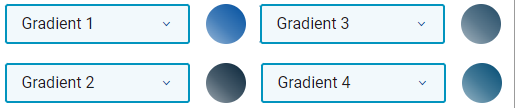
See the Home page topic for an example of gradients use.
Click at the top of the category detail to save the changes.
End user perspective
Each category specified as recommended receives its own gradient tile in the Recommended categories section in the Shop home page. Four tiles per row are displayed if the size of the window permits. With decreasing window size the tiles are first dynamically resized, followed by decreasing the number of tiles in a row. On mobile devices, the tiles are displayed one after another vertically.
Clicking anywhere inside the tile opens the related category in the category detail. The See category link in the tile can be used to open the category by keyboard navigation.