Shop settings
Click the settings icon in the main Shop sidebar to open Shop settings . The settings provides access to administrative parameters of the application.
Working with the settings
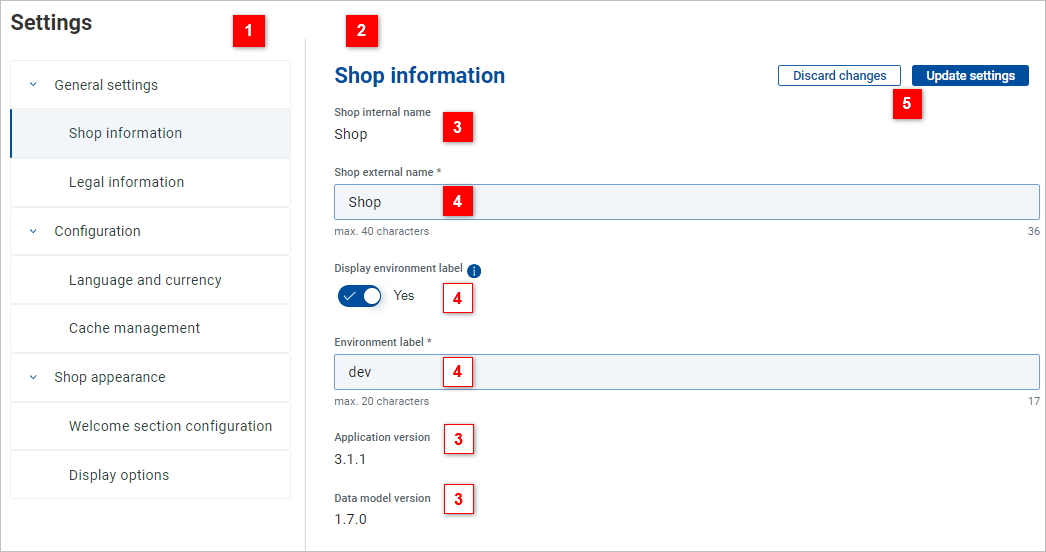
| Overview tab | Click individual items to expand/collapse sections or display corresponding settings page in the detail tab. |
| Detail tab | Displays settings belonging to the page selected in the overview tab. |
| Read-only settings | Some settings are displayed only for information and cannot be edited from within the Shop.. |
| Editable settings | Change the value of one or more settings and click the Update settings button (see below) to apply the changes. Trying to switch to another settings page with unsaved changes will produce a confirmation dialog. |
| Action buttons | Click Discard changes to reset all changed settings in the page to their previously saved values. Click Update settings to save the changes made in the page. Clicking the button with no changes to save will produce a popup notification. |


The settings are divided into three main areas: General settings, Configuration and Shop appearance.
Shop information
Shop internal name | Defined during deployment, not editable here. |
Shop external name | In addition to the internal name, another "external" name can be specified e.g. to differentiate different shop customizations. This name gets displayed under Version information in the About USU Shop dialog. |
Display environment label | If enabled, the below specified environment label will be displayed in square brackets after the shop name in the menu bar and in the browser tab. |
Environment label | Environment label can be specified to distinguish different staging environments used prior to shop deployment (development, test, etc.) The Display environment label setting must be set to Yes for the label to be visible (see above). |
Application version, Data model version | Not editable. |
Legal information
Data privacy URL | Specifies the path to a page opened by the Data privacy link under User profile. |
Legal notice URL | Specifies the path to a page opened by the Legal notice link under User profile. |
Copyright URL | Specifies the path to an optional Copyright page. |
Copyright Owner | Makes it possible to specify a copyright owner. |
Language and currency
Supported locales | Not editable, determined by underlying user management configuration. |
Default locale | Not editable, specified during deployment. |
Shop main currency | Not editable, specified during deployment. |
Multiple currencies can be set for each offer | Set to Yes to enable the ability to specify offer prices in multiple currencies. Note that when multiple currencies are enabled, selecting a specific currency in the user's User settings filters out all offers which do not have all price values in the selected currency filled in. This has the following consequences:
Note that as of Shop version 4.1, it is possible to specify offer prices in multiple currencies but these prices are not displayed in the end user Shop yet. |
Supported currencies | Select one or more currencies to become currencies supported by the Shop. Available for selection are currencies supported by the USU Service Management application linked with the Shop. Note that currencies are cached. Try clearing the browser cache if currencies supported by USU Service Management are not offered for selection in the Shop. Important note: If a currency is removed from the list of supported currencies, all currency values specified for this currency in the offers are irrevocably lost. |
Cache management
Cache lifetime (in minutes) | For performance reasons, some USU Service Management data used by the Shop is cached. Cache lifetime determines how often the cached data needs to be reloaded. The default value is 60 (minutes). After this time the cache is invalidated and if USM data is needed, it must be reloaded. Caching is used for the following data: External/global value sets, Object type configurations for USU Shop (business objects), Item types and BPM correlations types. Lower the value if you expect frequent data changes on the USM side. Be aware, though, that this may slow you down during some customization tasks as it will increase the need to reload data from USM. As a workaround, consider an ad-hoc use of the button (see below) instead. Note that cache lifetime relates mainly to data relevant for the administrator, such as USM object types or value sets. On the end user side, the setting affects Shop performance when business object references and global value sets are loaded during offer configuration. |
Clear cache | Click this button to force-clear cached USM data. Use this e.g. if you have been informed that USM data has changed and you need to use the updated data in your Shop customization straight away. |
Welcome section configuration
Display welcome section | If enabled, a visually prominent welcome section is displayed at the top of the Shop homepage. The welcome section is formed by an image stripe stretching horizontally across the top of the page, a headline and an optional greeting text. It can also contain a search field providing standard search functionality. See the Homepage topic for a visual example. |
Enable search field in welcome section | If enabled, the welcome section contains a search field. The search field in the welcome section provides the same functionality as search initiated by the Note that the welcome section search field is omitted in the mobile device interface. |
Greeting headline | Provide headline text (40 characters max). Headline text is mandatory if welcome section is enabled. |
Greeting text | Optionally, provide additional text (160 characters max) to be displayed in the welcome section. |
Image | Upload an image to be used as welcome section background. Image dimensions: The image gets stretched to match the available screen width and then truncated to the fixed height of the welcome section. Recommended minimum size for the image is 1920 x 430 px. However, be prepared to experiment with image sizes and aspect ratios to find an image suitable for screen resolutions prevalent among your users. Image content: To ensure readability of the Welcome headline and text, a dark-to-light gradient overlay is superimposed over the image. Adjust the brightness of your image if necessary. Uploading an image is mandatory for enabling the welcome section by the administrator. Note, however, that if the image fails to load at the end user side, the welcome section will be preserved and the image replaced by a fallback color gradient. |
