User interface
User interface of the administration client is consistent with other current generation USU apps.
Main sections
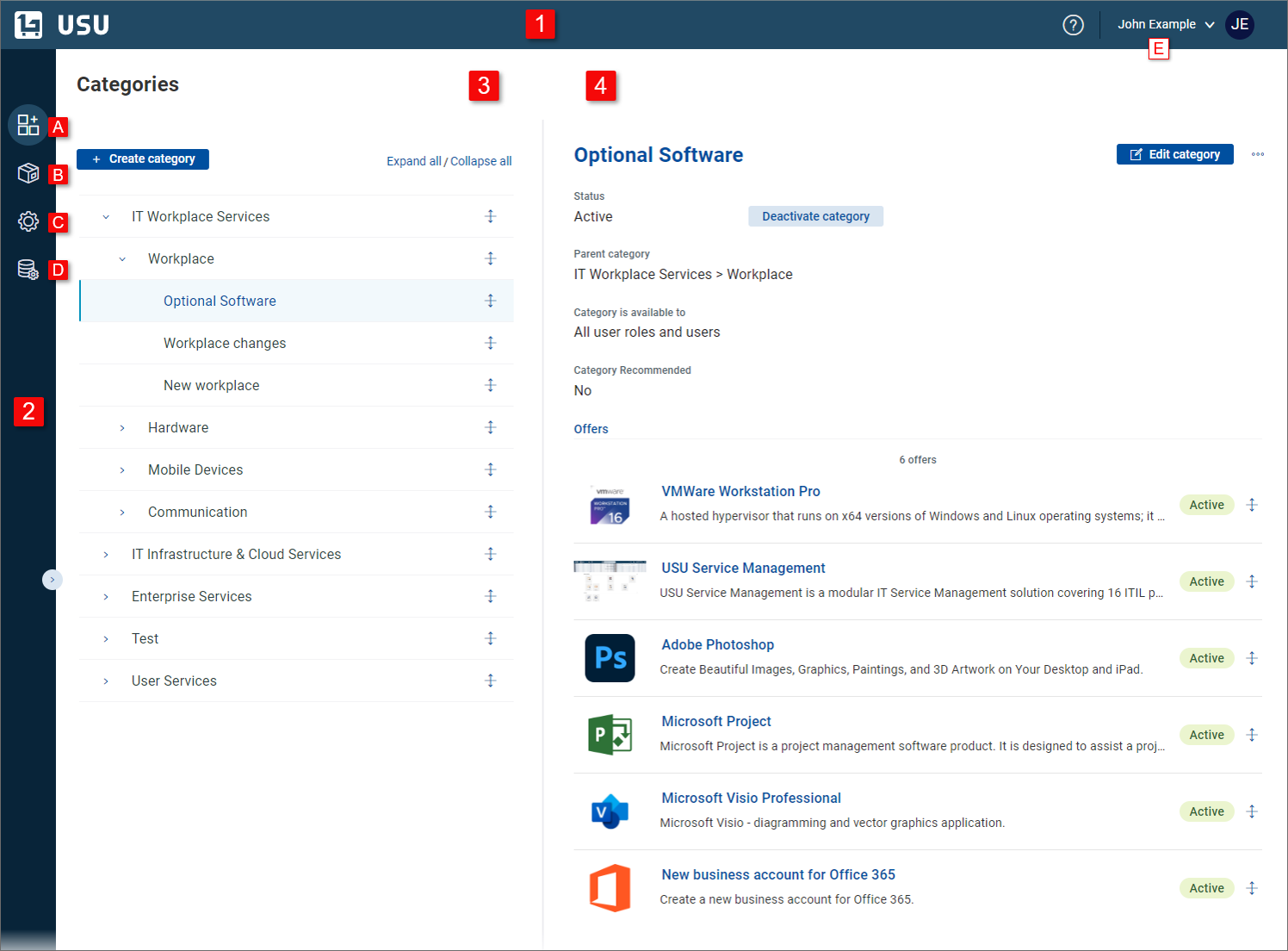
| USU toolbar | Application header with user profile settings. Click the element on the right to open a menu containing the following items: . Use the item to open user settings. Click the question mark icon to open online help. |
| Collapsible sidebar | Main navigational element of the administration client.
|
| Overview tab | Category tree (category administration mode) or offer list (offer administration mode) |
| Detail tab | Detail view of the category or offer selected in the overview tab. By default the view gets displayed in the read mode, click the Edit category / Edit offer button to unlock full editing capabilities. |


Note
Examples and screenshots in this administrator guide use demo data supplied by the manufacturer. The content (offers, categories and category structure) and some functions in your shop will differ but general concepts explained here still apply.
Clicking in the user profile menu opens a new browser tab with a page of the application. Here you can change some of your user account attributes and user interface preferences applied across all USU application for this account.
The following two User Management tabs are relevant for you:
Account |
|
Preferences |
|
To change and apply the settings:
Expand the User profile menu in the Toolbar and select .
The USU User Management application opens in a new browser tab, and you are redirected to this tab.
Change your settings (see above) in the USU User Management application.
Switch back to the Shop browser tab and reload the page. (E.g. using the F5 key standard for most browsers)
After reloading the page, the changed setting will apply. You can close the USU User Management browser tab.
Example: Changing the Shop user interface language
To change the language of your Shop user interface, use the above described procedure for setting Preferences / Global language.