My requests page
The My requests page provides an overview of all your already submitted requests.
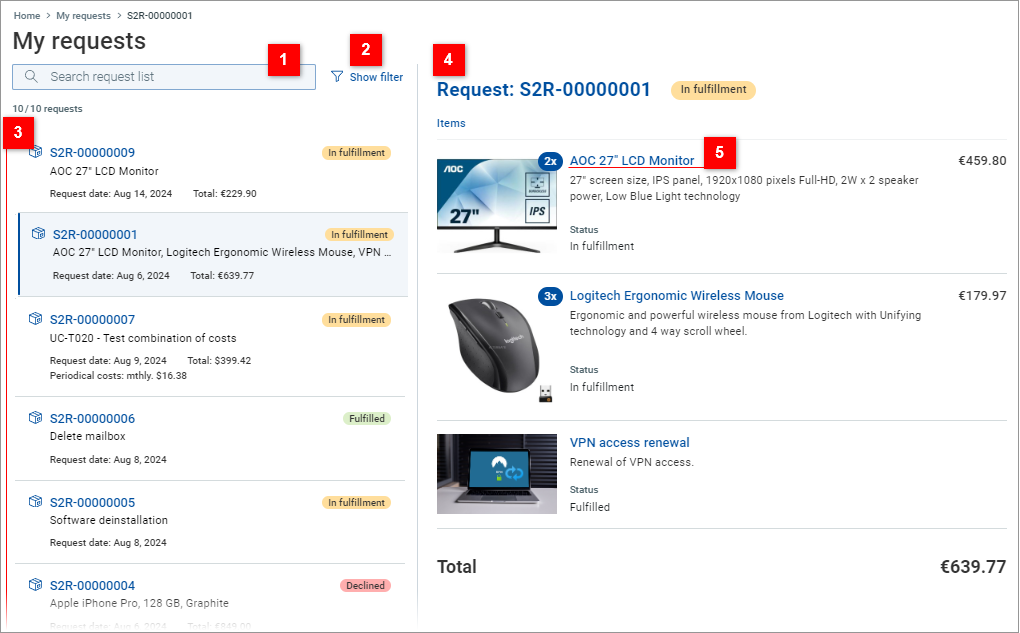
| Use the search field to search within all your requests. |
| Click Show filter to open the My requests filter dialog. Use the dialog to specify filtering of the requests list. |
| View your requests listed on the left. Select a request to see its content. Note that request prices are always presented in the currency in which the request was submitted. |
| View the content of the selected request. All items requested within the request are listed with a short summary, their price and periodical costs (if applicable). Total request price and periodical costs are also displayed. |
| Click the name of an item within the selected request to open its details page. Here the requested configuration can bee seen. Note that it is not possible to change the configuration as the request has already been submitted. |


Operations in a filtered requests list
If the requests list is currently filtered, you will notice the following changes:
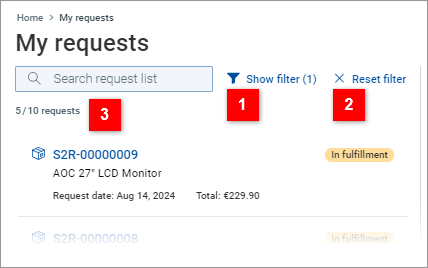
| Filtering is indicated by the number of applied filtering criteria being displayed by the Show filter button. Click the button to open the My requests filter dialog and see the filter criteria. Use the dialog to modify the criteria, if needed. |
| Click Reset all filters to clear the filtering and display an unfiltered list again. |
| The requests count displays the filtered / unfiltered list items ratio. |
Use at the top of the page or the in the toolbar to navigate out of the My requests page.